How to turn an Android phone into a NAS without root or cloud
A NAS is just a computer on your network that serves files. Your phone is a computer on your network with 128 GB or more of fast flash storage, a WiFi radio and a battery. The only thing missing is the server, and that is what Shelf adds: a file server with a web file manager, WebDAV, FTP and LocalSend-compatible transfers, running on the phone, talking only to devices on your own network.
This guide uses an ordinary Android phone, no root, no cloud account and nothing installed on the other devices. It takes about five minutes. If you have a drawer phone with a cracked screen, this is a good job for it.
1. Install Shelf and allow All files access
Install Shelf (Google Play, or the signed APK on the download page). On first run a short sheet explains the permissions. The one that matters is All files access: a NAS that can only see its own private folder is not much use, and Android's scoped storage would otherwise hide your Camera, Downloads and SD card from the server. Shelf never uploads anything; the permission only decides which folders you are able to share.
Notifications are worth allowing too. They carry the sharing status, incoming-transfer prompts and a quiet "Received 3 files" when something lands.
2. Start sharing and open the phone in a browser
Open the Network tab and tap Start sharing. The phone shows its address, something like http://192.168.1.24:8080, next to a QR code and the name shelf.local.
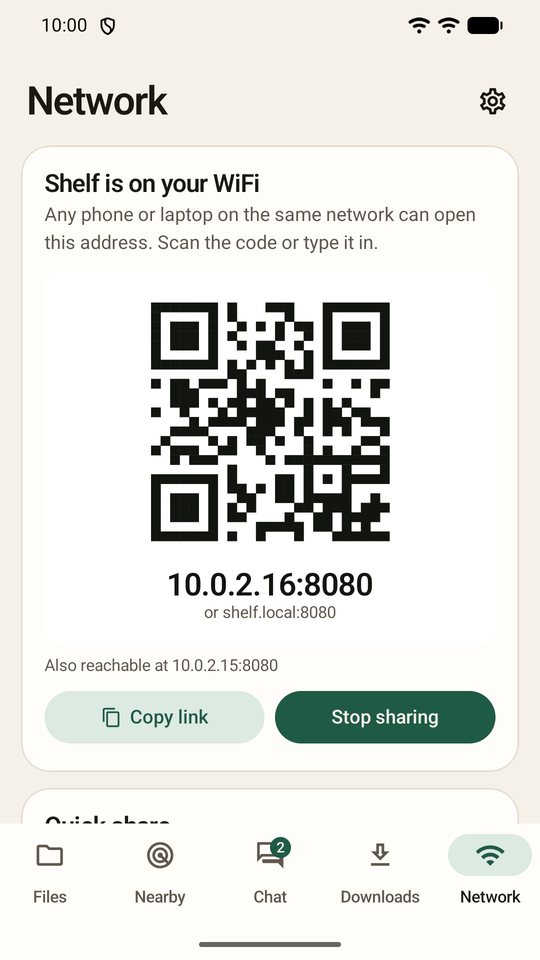
On a laptop, a tablet or another phone on the same WiFi, type that address into any browser, or scan the QR with the camera. You get the same file manager you see on the phone: folders, thumbnails, previews for photos, video, audio and documents, drag-and-drop upload, zip download of whole folders, rename, move, copy. It works in Chrome, Safari, Firefox and Edge, on anything with a screen.
If the browser cannot reach the address, the usual cause is a guest or public WiFi that blocks device-to-device traffic. Either use your home network or let the phone be the network: Network → Create private network starts a hotspot with its own join QR, and devices that join it can open Shelf with no internet at all.
3. Choose what to share
By default browsers see the Shelf folder on internal storage, which contains Inbox (where uploads and received files land), Downloads (for links the phone fetches) and Shared (quick-share links). That is a sensible NAS root: put the folders you want to serve inside it, or move things there from the file manager.
To serve the whole phone, including Camera, Downloads, Documents and SD cards, turn on Browsers can browse the whole phone in Settings. Browsers then get location chips for each area. Keep this off on networks you do not control.
4. Mount it as a drive on a laptop
A browser is enough for most days, but a NAS really earns its name when it shows up in Finder or Explorer as a drive you can drag into. Shelf serves WebDAV at http://phone-ip:8080/dav/ and, with Pro, FTP on port 2121:
- macOS: Finder → Go → Connect to Server → paste the WebDAV address.
- Windows: Explorer → This PC → Map network drive → paste the address. If you use a PIN or accounts, Windows needs one registry value to allow Basic auth over plain http; the WebDAV guide has it. FTP in the address bar needs nothing.
- Linux: Files → Other locations →
dav://phone-ip:8080/dav/. - Another phone: Solid Explorer, CX File Explorer or any app with a WebDAV or FTP client.
WebDAV and FTP are part of Shelf Pro; the browser, Nearby, chat and the download manager are free.
5. Phone-to-phone, and from Chrome
The Nearby tab finds other Shelf phones and LocalSend apps on the network. Pick one or several, send files or a message; the other side accepts what it wants, and devices you star never ask again. Because Shelf speaks the LocalSend protocol, a friend who already has LocalSend can send to your phone without installing anything new. The LocalSend comparison goes deeper.
On a laptop that lives in Chrome, the Shelf Connect extension adds a right-click "Send to Shelf" for links, images and pages, a drop zone for files, and notifications when the phone pushes files to you.
6. Keep it running overnight
Android is keen to kill background apps, and a NAS that goes to sleep is annoying. Three settings fix it:
- Battery optimisation: Settings → Background → open the system page and mark Shelf as Not optimised. Shelf runs a foreground service with a visible notification, which is what Android expects from a server.
- Start sharing at boot and Auto-start on trusted WiFi (Pro): the phone comes back on its own after a reboot or when it reconnects to your home network.
- Keep the screen off: you do not need it on. Transfers continue; a progress notification shows what is moving.
Leave the phone on a charger. A phone draws a few watts; a conventional NAS draws twenty to forty.
7. Lock it down
At home with open access is fine: anyone on your WiFi can read and write. Anywhere else, use the access modes in Settings:
- PIN: one code for everyone, asked once per browser.
- Accounts: named users with roles from read-only to admin, revocable sessions, lockout after failed sign-ins. Good for a shared flat or a small office.
- HTTPS: Settings → Secure connection. The phone makes its own certificate; browsers warn once, or install the certificate for a permanent padlock.
- Nearby visibility: Everyone, Trusted only, or Hidden, plus an optional PIN for new devices.
Limits and questions
How fast is it?
On 5 GHz WiFi expect 15–40 MB/s for browser uploads and downloads, which is a 4 GB video in two to four minutes. Big uploads go in 8 MB chunks over four connections and resume after a drop; downloads from the internet use up to eight connections (two in the free tier). The speed test on the Network page shows what your link can do.
Can I reach it from outside my home?
Not by design. Shelf is a local-network server; exposing a phone to the internet is a different product with different risks. If you need remote access, put the phone behind a VPN such as Tailscale or WireGuard and use the same addresses.
Does it work without a router?
Yes: the private network (hotspot) makes the phone the access point. It is also the way around hotel and café networks that isolate clients.
Will it wear out the phone?
Serving files is light work. Keep it on a charger, out of the sun, and it will outlast most routers.