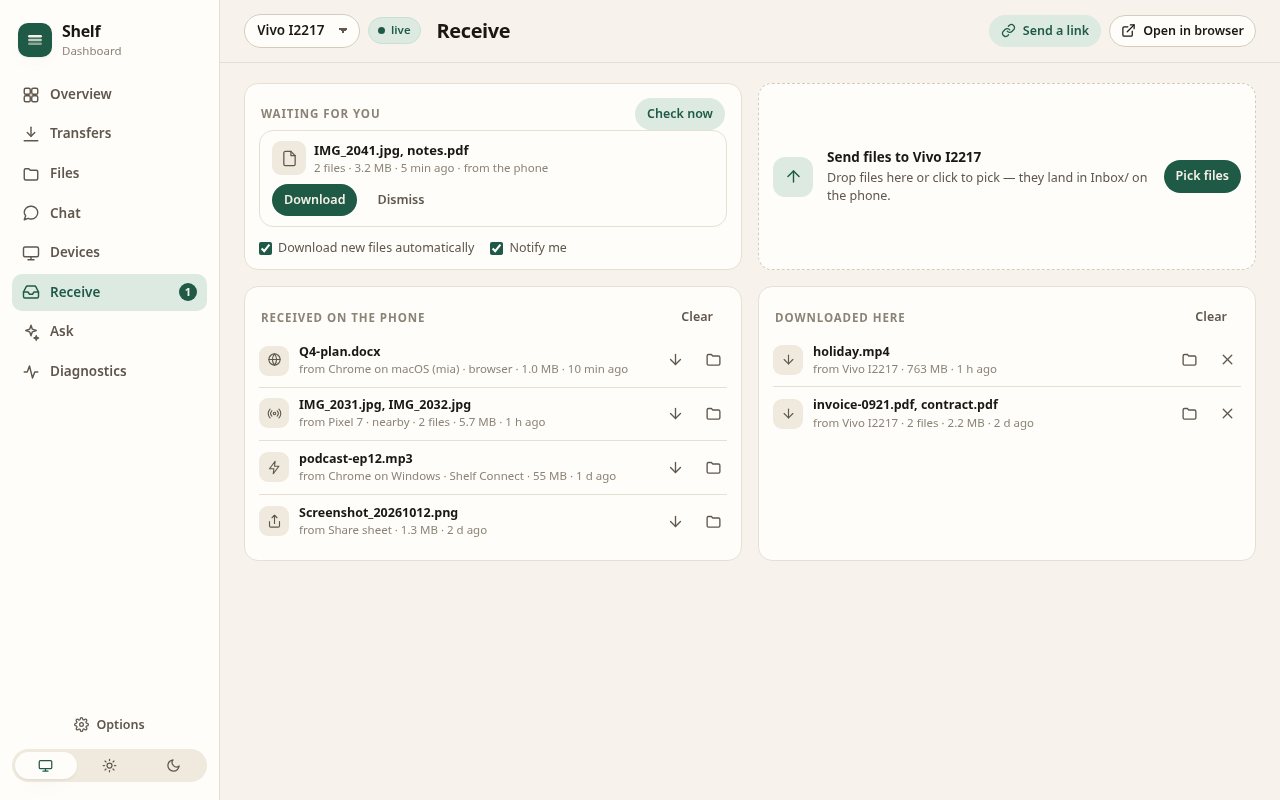
The Receive view: what is waiting for you, a drop zone that sends straight into Inbox/ on the phone, everything the phone received from browsers, nearby devices and the share sheet, and what this browser already downloaded.
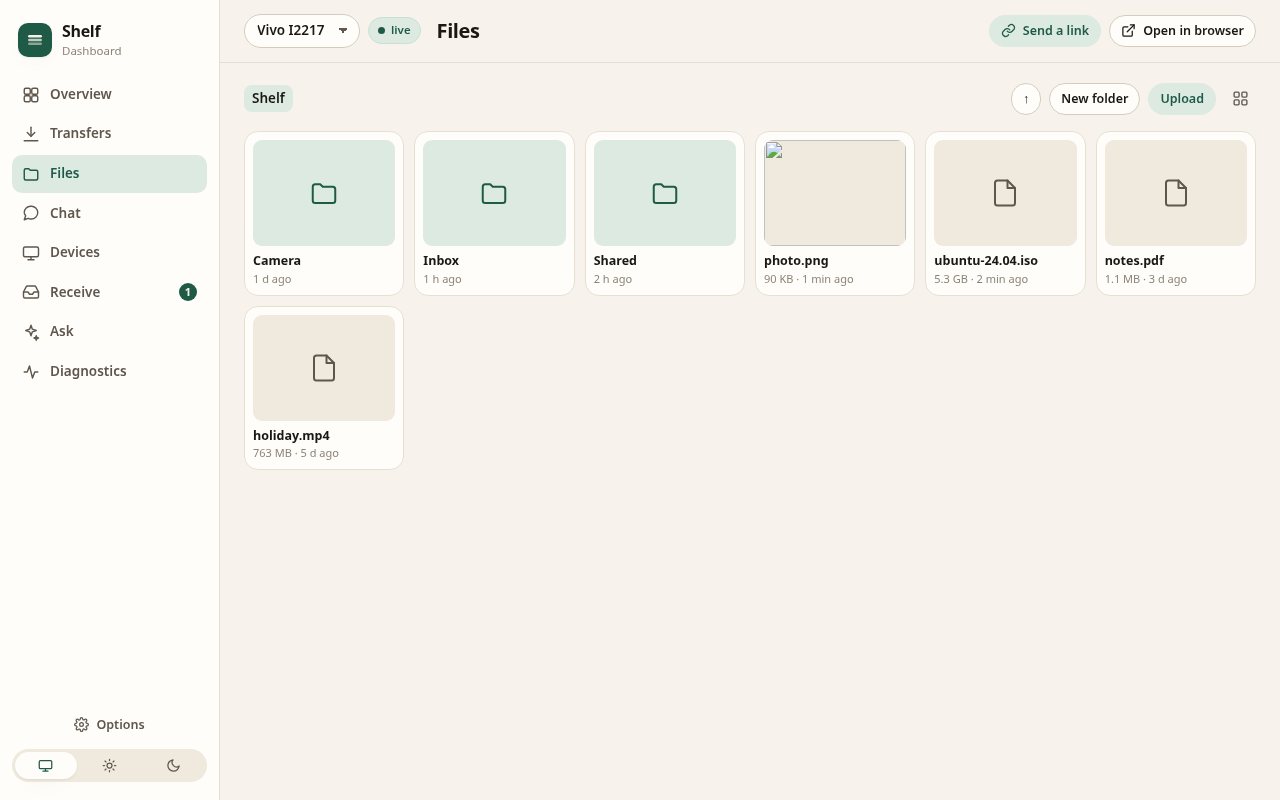
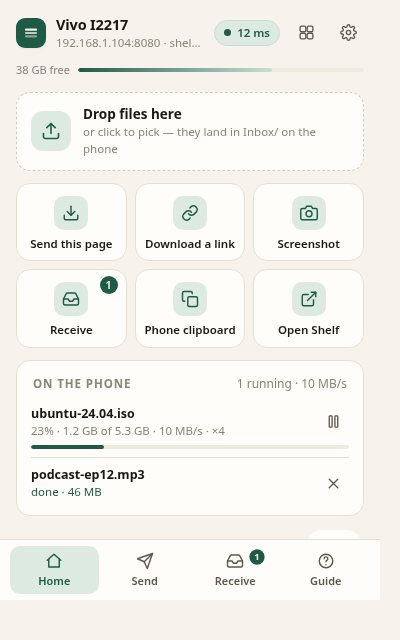
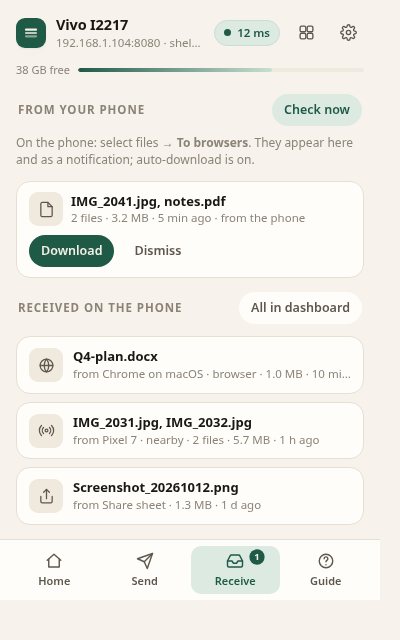
Shelf Connect pairs your browser with the Shelf app on your Android phone over your own WiFi. Send a link, an image, a page or a pile of files to the phone from the context menu; receive what the phone pushes to you as a notification; keep every phone live in a dashboard. Nothing goes through a server.
The Receive view: what is waiting for you, a drop zone that sends straight into Inbox/ on the phone, everything the phone received from browsers, nearby devices and the share sheet, and what this browser already downloaded.
Inbox/.Download shelf-connect-extension.zip here, or from the phone itself at http://<phone>:8080/extension while Shelf is sharing. Unzip it somewhere permanent.
Open chrome://extensions, switch on Developer mode (top right), click Load unpacked and pick the unzipped folder. Pin Shelf Connect to the toolbar.
Click the icon → Find my Shelf, or type the address shown on the phone's Network tab (shelf.local works on most laptops). Sign in once if the phone asks; the session is remembered.
Phone → Settings → Secure connection. Open the https address once, accept the phone's certificate, then turn on Prefer the secure address in Options.
Permissions: storage, context menus, downloads, notifications, alarms, active tab, tabs, scripting (send every image on a page), page capture (save a page as MHTML), and access to http/https pages so it can reach the phone on your network. It never contacts any server except the phone you connect and, if you enable it, the Claude API with your own key.
It will be. Until the listing is approved, loading it unpacked gives you exactly the same extension. Chrome keeps unpacked extensions working across restarts; it only warns once.
Yes. Both load Manifest V3 extensions the same way (edge://extensions, brave://extensions).
Yes. Each phone you connect is remembered; the popup and the dashboard switch between them, and the overview shows them all at once.
Into your browser's normal Downloads folder, one file each or as one zip when the phone sends more than a few. The dashboard's Receive view lists them with a jump to the file.
Yes. Shelf must be sharing (Network → Start sharing). The extension polls the phone every 30 seconds in the background and every 2 seconds while the dashboard is open.
Read next: Send files from Chrome to your Android phone in one click.