Send files, links and pages from Chrome to your Android phone in one click
"Send this to my phone" is a dozen-times-a-day request: a PDF to read on the train, an image for a chat, a download that should land on the phone rather than the laptop. The usual answers involve emailing yourself or a cloud drive. Shelf Connect does it over your own WiFi with a right-click, and brings files back the other way as notifications.
What you need
- An Android phone with Shelf installed and sharing (Network → Start sharing).
- Chrome, Edge or Brave on a laptop on the same WiFi.
- Two minutes. There is no account to create.
Install the extension (unpacked, until the store listing lands)
- Download shelf-connect-extension.zip, or open
http://<phone>:8080/extensionin the laptop's browser while the phone is sharing and download it from there. Unzip it into a folder you will keep (Chrome loads it from that folder every time). - Open
chrome://extensions, switch on Developer mode in the top right, click Load unpacked and pick the unzipped folder. - Click the puzzle-piece icon in the toolbar and pin Shelf Connect.
Chrome shows a one-time notice about developer-mode extensions. It keeps the extension across restarts.
Pair it with the phone
Click the Shelf icon. Press Find my Shelf and the extension tries shelf.local and the usual addresses on your network; or type the address from the phone's Network tab. If the phone uses a PIN or accounts, sign in once; the session is remembered. The popup then shows the phone's name, free space and what it is downloading.
Send things
- A link: right-click → Send link to Shelf. The phone downloads it into
Downloads/, over several connections for big files, and you watch the progress in the popup. - An image or video on a page: right-click it → Send to Shelf.
- Selected text: right-click → it goes to Shelf's chat, which every device on the network can read.
- Files from the laptop: drop them on the popup or on the dashboard's Receive page. They land in
Inbox/on the phone and appear in its Received list. - The page you are reading: Alt+Shift+S, or right-click → Save this page to Shelf for a single-file MHTML copy you can read offline on the phone.
- Every image on a page: right-click → Send all images to Shelf.
Receive things
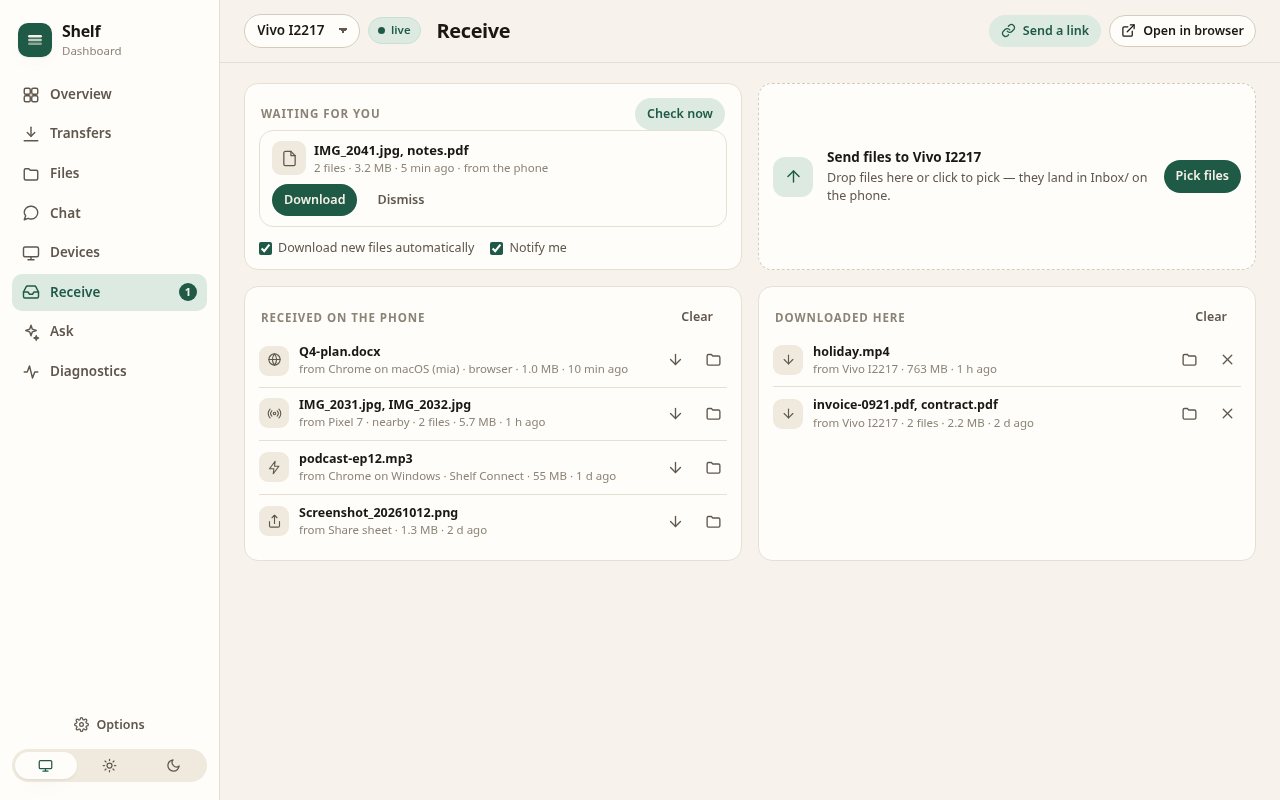
On the phone, select files in Shelf and tap To browsers. Every connected browser gets a notification and a badge on the extension icon. With Download new files automatically on (it is on by default), the files simply arrive in your Downloads folder; many files come as one zip. The dashboard's Receive view lists what is waiting, what the phone received from anyone, and what this browser already downloaded, with a jump to each file.
The dashboard
Alt+Shift+D opens a full-page view of every phone you have paired: transfers, files with thumbnails, chat, devices on the network, diagnostics. It polls the phone only while the tab is visible and updates in place, so it can stay open on a second monitor without flicker or battery drain.
Privacy
The extension talks to the phone and nothing else. The optional AI helpers (summarise a page into chat, ask about a folder) use Chrome's built-in model or your own Claude API key stored locally, see only file names and sizes, and are off by default. Full details on the extension page and in the privacy policy.